Posted on Leave a comment

Reading Light Bar

Requirements:

  • Diffused RGBW light that is great for reading that can be mounted to the wall
  • Requires different modes of operation. a) Crazy light show b) Adjustable R G B and W light via faders
    • Reading mode should start out at the set brightness and then fade incrementally for an hour until eventually shutting off. You shouldn’t notice the light is getting dimmer.

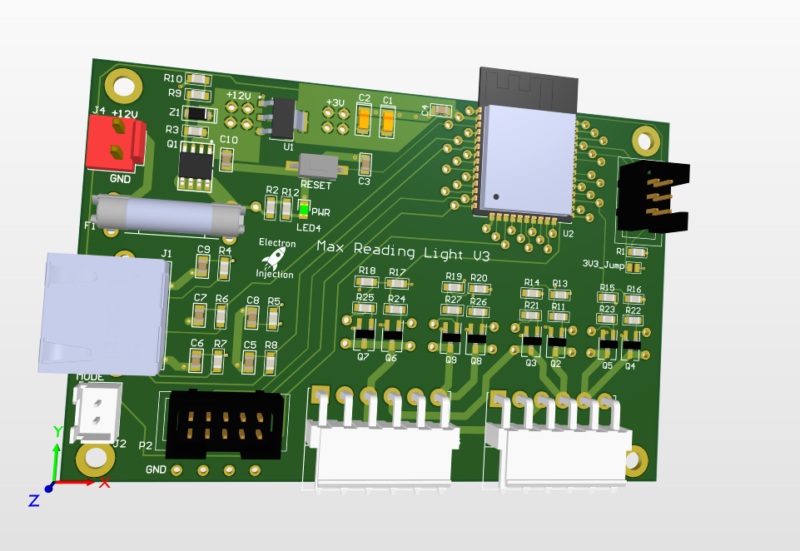
This was a basic project. The ESP32 is overkill for this, but I had it on hand. For linear faders that are normally used on a mixing console create voltage dividers that are read by the ADC on the ESP32. The light is dimmed with standard PWM and MOSFETs. Fun artifact. My son wanted to know why his ceiling fan was spinning backwards. He learned all about aliasing! Fun stuff. The PWM frequency I chose is just a hair faster than the rotation of the fan. Persistence of vision says humans can see light when it blinks fast enough, but tell that to the fan. It knows!

Lessons Learned

I don’t know what I was thinking! I used a linear regulator to step down from 12V to 3.3V. That’ll never happen again. Dissipating 8V+ when an ESP32 is pulling hefty power for a modern microcontroller is a bad, bad idea. I should have used a switching regulator. People worry about the noise. Fair enough. I worry about melting!

Those hefty VM3.96mm connectors at ref des: J5 and J3 are strong. They are also a bit too snug. They are meant to be plugged in and stayed plugged in. That’s good. The problem is if you ever want to take the connector off. They are kinda terrible. Granted, I’m sure I got these from Ali Express for $0.00001. Maybe you get what you pay for sometimes.

This was a fun little project. The greatest challenge was getting the clearance right on the 3D printed “tracks” for the LEDs.

As always I always struggle with wiring and connectors. The NAME OF CONNECTOR GOES HER wasn’t nearly as handy for plugging and unplugging as I had hoped. I used an RJ45 connector for the ESP32 to talk to the fader. That worked well. The lesson is a consumer-approved connector should always be used for “consumer approved tasks” whatever that means.

Posted on Leave a comment

Arduino: Transmit 10-bit ADC Reading Through Serial

So the standard Serial.write() or Serial.print in Arduino land is 8-bit All this really means is we need to send one byte ( bits) at a time. If we try to send 10 bits, then bad things happen.

On top of that, it’s better to setup a secret word for start and another one for end. This is the same thing that naked couples do when they get out the power tools. They need safe words. Maybe we all do. Anyhow, by telling our receiver not to bother receiving until it hears the start word and not to finish until it hears the end word, we can be much more confident that the data we are receiving is legit.

A good chunk of this code was taken from various sources from this article. https://forum.arduino.cc/t/serial-input-basics-updated/382007/3

Sending

// Uses ATmega4808  (Thunder Magnum dev board)
#include <Arduino.h>

#define LEDPIN PIN_PA7
#define LEDPIN2 PIN_PA6

int sensorValue;
int newsensorValue;

#define MONITOR_SPEED 115200
void setup()
{
  // put your setup code here, to run once:
  pinMode(LEDPIN, OUTPUT);

  // Setup serial with 2nd ucontroller
  Serial.begin(MONITOR_SPEED); // PA0 is tx and PA1 is rx

  // Setup serial with computer
  Serial1.begin(MONITOR_SPEED); // PC0 is tx.   PC1 is rx.
}

void loop()
{

  // 10 bit ADC read
  newsensorValue = analogRead(PIN_PD0);

  // throw away the lowest 8 bytes to send just the biggest 2 bits
  int Bigbyte = (newsensorValue >> 8);

  // AND 0b1111111 with ADC read to keep only the lowest 8 bits
  int Littlebyte = newsensorValue & 0xFF;

  // talk to computer com port
  Serial1.print("sending: ");

  // combine back together and talk to computer ( sanity check )
  Serial1.println((Bigbyte << 8) + Littlebyte);

  byte startMarker = 0x3C;
  byte endMarker = 0x3E;

  // Talk to 2nd microcontroller
  Serial.write(startMarker);
  Serial.write(Bigbyte);
  Serial.write(Littlebyte);
  Serial.write(endMarker);

  delay(1000);
}

Receive

// Uses ATmega4808  (Thunder Magnum dev board)
#include <Arduino.h>

#define LEDPIN PIN_PA7
#define LEDPIN2 PIN_PA6

void showNewData();
void recvBytesWithStartEndMarkers();

const byte numBytes = 32;
byte receivedBytes[numBytes];
byte numReceived = 0;

boolean newData = false;

#define MONITOR_SPEED 115200
void setup()
{
  // put your setup code here, to run once:
  pinMode(LEDPIN, OUTPUT);

  Serial.begin(MONITOR_SPEED);  // PA0 is tx and PA1 is rx
  Serial1.begin(MONITOR_SPEED); // PC0 is tx.   PC1 is rx.


  digitalWriteFast(LEDPIN, LOW);
  delay(1000);
}

void loop()
{
  recvBytesWithStartEndMarkers();
  showNewData();
}

void recvBytesWithStartEndMarkers()
{
  static boolean recvInProgress = false;
  static byte ndx = 0;
  byte startMarker = 0x3C;
  byte endMarker = 0x3E;
  byte rb;

  while (Serial.available() > 0 && newData == false)
  {
    rb = Serial.read();
 
    if (recvInProgress == true)
    {
      if (rb != endMarker)
      {
        receivedBytes[ndx] = rb;
        ndx++;
        if (ndx >= numBytes)
        {
          ndx = numBytes - 1;
        }
      }
      else
      {
        receivedBytes[ndx] = '\0'; // terminate the string
        recvInProgress = false;
        numReceived = ndx; // save the number for use when printing
        ndx = 0;
        newData = true;
      }
    }

    else if (rb == startMarker)
    {
      recvInProgress = true;
    }
  }
}

void showNewData()
{
  if (newData == true)
  {
    Serial1.println("Received: ");
 
    int receivedandformatted = (receivedBytes[0] << 8) + receivedBytes[1];
    Serial1.println(receivedandformatted);

    Serial1.println();
    newData = false;
  }
Posted on Leave a comment

MIDI Test Code on Arduino and STM32 Blue Pill

This code turns the onboard PC13 LED of the STM32 Blue Pill on when a MIDI NoteOn message is received and turns the LED off when a MIDI Noteoff message is received. It’s my preferred way to confirm that a MIDI circuit is working. It relies on the Arduino MIDI Library.

#include <MIDI.h>

#define LED PC13 // LED pin on Arduino Uno

MIDI_CREATE_DEFAULT_INSTANCE();

void doSomeStuffWithNoteOn(byte channel, byte pitch, byte velocity);
void NoteOff(byte channel, byte note, byte velocity);

void setup()
{
  pinMode(LED, OUTPUT);
  MIDI.begin();
  MIDI.setHandleNoteOn(doSomeStuffWithNoteOn);
  MIDI.setHandleNoteOff(NoteOff);
}

void loop()
{

  MIDI.read();
}

void doSomeStuffWithNoteOn(byte channel, byte pitch, byte velocity)
{
  // note on code goes here
  digitalWrite(PC13, LOW);
}

void NoteOff(byte channel, byte note, byte velocity)
{
  // note off code goes here
  digitalWrite(PC13, HIGH);
}
Posted on Leave a comment

Smooth Fading LEDs With STM32 Blue Pill on Arduino Platform

The smooth fading of LEDs is possible, but it’s best to have 16 bits to work with and ditch the linear world.

// My code
dutyCycle = pow(1.03, time_increment);

// Math equivalent
y = 1.03^x

Above is the most interesting piece of code today. dutyCycle for this code is a number from 0 – 65535. (16-bit resolution is (2^16 – 1 = 65535).

I have the time_increment set to 10ms. So, basically, we are going to increase the dutycyle by 3% every 10ms. You’ll see below that I settled on 375 steps with each time taking 10ms. By using a time_increment that is set to increase every X milliseconds, it’s easy to control the speed of the fading.

WHY 1.03?

To get the 1.03 value, I worked backward and shot for a ballpark rating of 400 individual steps of brightness. Why? No idea.
After some playing, I figured out that 1.03^375 = 65156. 375 steps works for me. The big rule is we can’t exceed 65535 or the microcontroller will rollover.
To put it another way, 65535 + 1 = 0 in digital land. It’s no different than any other cyclical process. In military time, if you add another minute to 23:59, you get 00:00.
For our purposes, we didn’t want rollover. We want to smoothly fade the LED up to it’s maximum brightness and then back down.

WHY NOT LINEAR?

Much like our ears, eyes have evolved to handle an atrocious level of dynamic range. Such systems play in the world of logs and exponentials (same thing after you flip the graph axis around). It’s one of those scientific marvels that we can make sense of a duty cycle of 65535 and still tell the difference between 500 and 600. In a linear system, we’d have to pick one extreme or the other.

MAKE IT BETTER

It turned out that the dutyCycle code above spent a ton of time in the bottom region. After 50 increments of time, for example, the duty cycle would be 4  (1.03^50 = approx 4). That’s “off” in terms of LED brightness to my eyes. There’s a solution.

Remember that 1.03^375 = 65156. Technically, this wastes a bit of our headroom. We have 65535 to work with and our problem is we are spending too much time down around 0. The lucky fix is to use an offset much like you may have learned (and forgotten) in Alegebra class.

y = mx + b

This is a linear function, but the idea of “b” is the same.  “b” lets us shift our function up our down. We want to shift the whole thing up.   To get our “b” I took 65535 – 65156 to get 379. Let’s just say 375 to be conservative.

// New Code
dutyCycle = pow(1.03, time_increment) + 375;

// Math equivalent
y = 1.03^x + 375.

Now the LEDs do what they are supposed to.  There is not excessive time spent with the LEDs “off”.    So, at time = 0, we end up with a duty cycle of 376. (1 + 375). 376/65535 * 100 = 0.5% actual duty cycle. In reality, this is a brightness of zero. Solved!


#include <Arduino.h>

#define PWM1_pin PA8
#define PWM2_pin PA9
#define PWM3_pin PA10

#define INCREMENTER 100

void CycleA(int pin, int pwm_limit)
{
	int run = 1;
    long timeA = 0;
    int countUp = 1;
    int dutyCycle = 1;
    int time_increment = 0;
    

  while (run == 1)
  {
     
    long currentTime = millis();


    if (pin == 1)
    {
      analogWrite(PWM1_pin, dutyCycle);
    }
    if (pin == 2)
    {
      analogWrite(PWM2_pin, dutyCycle);
    }
        if (pin == 3)
    {
      analogWrite(PWM3_pin, dutyCycle);
    }

    if (currentTime - timeA > 10)
    {
      dutyCycle = pow(1.03, time_increment);
      timeA = currentTime;

      if (dutyCycle > pwm_limit)
      {
        delay(2750);
        //dutyCycle = 1;
        //time_increment = 0;
        countUp = 0;
      }

      if (dutyCycle < 10 && countUp == 0)
      {
        countUp = 1;
        run = 0;
      }

      if (countUp == 1)
      {
        time_increment++;
      }
      else
      {
        time_increment--;
      }
    }
  }
}

void setup()
{

// All PWM pins need to be set as output
// Note:  I've seen multiple examples in which the PWM pins were set to "PWM" instead of "OUTPUT".  I have no explanation for that other than maybe they are using 
// the other guy's STM32-to-Arduino library.
  pinMode(PWM1_pin, OUTPUT);
  pinMode(PWM2_pin, OUTPUT);
  pinMode(PWM3_pin, OUTPUT);
  
  // Change the analogWrite function to operate at 16-bit.  It maxes out at 65535 instead of the 255 of 8-bit.
  analogWriteResolution(16);

}

void loop()
{
 // CycleA(  pin_number,  duty_cycle_limit).
 // This function allows selecting a pin number and sets the duty cycle limit on a scale of 0-65535.
 //  You'll see below that the 10000 for LED Color #1 is there because this was an LED strip that was exceedingly bright.
 //  Basically, the duty_cycle_limit is a brightness limiter.
 
 // I didn't take the time to pass the pin define (PA8, PA9, and PA10) through a function.
 
 // Run LED Sequence for LED Color #1
  CycleA(1, 10000);
  
  // Run LED Sequence for LED Color #2
  CycleA(2, 65000);
  
  // Red LED Sequence for LED Color #3.
  CycleA(3, 65000);
}


Posted on Leave a comment

Multiple MCP23017 Expanders With Interrupts Not Playing Nice

was manually polling my 3 MCP23017 expanders I need for all the buttons for my synth just to get the ball rolling. The serial monitor tells me it was taking almost 5ms….which is similar to the amount of time it’ll take for the dinosaurs to come back. (It’s a billion years in microcontroller land.) I thought making the jump to interrupts wouldn’t be that big of a deal. It was an absolute nightmare. I found a site that really got me going https://www.best-microcontroller-projects.com/mcp23017.html#L2415 , but they pulled a few tricks to account for some goofiness in the I2C’s interrupts. Within their tricks was a 1ms debounce delay. I’ve done my share of debouncing and I immediately did the ol’ nose scrunch to that one. A 1ms debounce is totally non-functional.

My problem was that after an interrupt was triggered on the MCP23017 (causing the 5V to drop to 0V), it was staying at 0V and not being reset. Using the Adafruit library, the method to do that was to simply read the getLastInterruptPinValue(); The problem was I was already doing this and the pin was not resetting back to 5V.

The solution came in realizing that the interrupts in the MCP23017 were continually being triggered by switch bounce. Nick Gammon, the king of everything, has an outstanding tutorial that illustrates this.  He uses no oddball ISR stuff…..just meat n’ taters interrupts. However, he uses a 500ms debounce. That’s a hair extreme, but it sure beats 1ms. I was lucky in that I could wait to call the getLastInterruptPinValue() until I was done doing my work. In fact, I had no need for the value.  All mine are zero.   I was using that function call as an ISR reset. So, I could call getLastInterruptPin(), do my work, put a delay(150) just before the clearing function and everyone is happy.

Even better, I’m using the switches connected to my 3 MCP23017s to update a 16×2 LCD (among other things). I can update the LCD instantaneously. I don’t have to wait at all. In this way, the end-user will never feel my LCD being slow or clunky even though I have delays built-in.  If I wanted to get really cute (and I may) and use an asynchronous delay like the infamous Arduino Blink Without Delay example. Actually, I’ll probably have to do that.

Anyway, here’s the code. I hope it helps.


#include "Arduino.h"


#include 
#include 


#define BUTTON1_INT_PIN PB8
#define BUTTON2_INT_PIN PB9
#define BUTTON3_INT_PIN PA15
#define MCP_INT_MIRROR true // Mirror inta to intb.
#define MCP_INT_ODR false   // Open drain.


/********** NOTES ********************/
Adafruit_MCP23017 button1; // Create an object for the first button board.
Adafruit_MCP23017 button2; // Create an object for the second button board.
Adafruit_MCP23017 button3; // Create an object for the third button board.

volatile byte button1Apushed, button1A_ID_value, button2Apushed, button2A_ID_value, button3Apushed, button3A_ID_value;
volatile byte button1A_ID = 16; // reset to be out of the range of the 0-15 MCP23017 buttons.
volatile byte button2A_ID = 16; // reset to be out of the range of the 0-15 MCP23017 buttons.
volatile byte button3A_ID = 16; // reset to be out of the range of the 0-15 MCP23017 buttons.

// ------------- FUNCTIONS ---------------------------

void button1A_ISR()
{
  button1Apushed = 1;
}

void button2A_ISR()
{
  button2Apushed = 1;
}

void button3A_ISR()
{
  button3Apushed = 1;
}


void setup()
{
  //---------------- BUTTON EXPANDER SETUP ------------------------
  // The address is specified using the A0, A1, and A2 pins
  button1.begin(0b000); // use default address 0, otherwise, the address needs to be defined
  button2.begin(0b001); // make sure to give A0 5V.
  button3.begin(0b010); // Set this up.

  pinMode(BUTTON1_INT_PIN, INPUT); // button1 interrupt pin on ucontroller
  pinMode(BUTTON2_INT_PIN, INPUT); // button1 interrupt pin on ucontroller
  pinMode(BUTTON3_INT_PIN, INPUT); // button1 interrupt pin on ucontroller

  for (int i = 0; i < 16; i++)
  {
    button1.pinMode(i, INPUT); // MCP23017 #1 pins are set for inputs
    button1.pullUp(i, HIGH);   // turn on a 100K pullup internally
    button2.pinMode(i, INPUT); // MCP23017 #2 pins are set for inputs
    button2.pullUp(i, HIGH);   // turn on a 100K pullup internally
    button3.pinMode(i, INPUT); // MCP23017 #2 pins are set for inputs
    button3.pullUp(i, HIGH);   // turn on a 100K pullup internally
  }
  
  button1.setupInterrupts(MCP_INT_MIRROR, MCP_INT_ODR, LOW); // The mcp output interrupt pin.
  button2.setupInterrupts(MCP_INT_MIRROR, MCP_INT_ODR, LOW); // The mcp output interrupt pin.
  button3.setupInterrupts(MCP_INT_MIRROR, MCP_INT_ODR, LOW); // The mcp output interrupt pin.

  // Setup INTs on the MCP23017 button1 for all 16 buttons
  for (int i = 0; i < 16; i++)
  {
    button1.setupInterruptPin(i, FALLING);
    button2.setupInterruptPin(i, FALLING);
    button3.setupInterruptPin(i, FALLING);
  }

  button1.readGPIOAB();
  button2.readGPIOAB();
  button3.readGPIOAB();
  
  attachInterrupt(digitalPinToInterrupt(BUTTON1_INT_PIN), button1A_ISR, FALLING);
  attachInterrupt(digitalPinToInterrupt(BUTTON2_INT_PIN), button2A_ISR, FALLING);
  attachInterrupt(digitalPinToInterrupt(BUTTON3_INT_PIN), button3A_ISR, FALLING);


} // end of setup

void loop()
{

  if (button1Apushed)  // Buttons 0-15 on MCP23017 #1 
  {
    button1A_ID = button1.getLastInterruptPin();
	
	// update LDC here

    button1A_ID = 16;                                                                   // reset to a value that is outside the 0-15 button range of the MCP23017
    button1Apushed = 0;                                                                 // reset the pushed status
    delay(150);                                                                         // strong debounce
    button1A_ID_value = button1.getLastInterruptPinValue();                             // This one resets the interrupt state as it reads from reg INTCAPA(B).
    attachInterrupt(digitalPinToInterrupt(BUTTON1_INT_PIN), button1A_ISR, FALLING);
  }

  if (button2Apushed) // Buttons 16-31 on MCP23017 #2
  {
    button2A_ID = button2.getLastInterruptPin() + 16;


	// update LDC here
	
    button2A_ID = 16;                                                                   // reset to a value that is outside the 0-15 button range of the MCP23017
    button2Apushed = 0;                                                                 // reset the pushed status
    delay(150);                                                                         // strong debounce
    button2A_ID_value = button2.getLastInterruptPinValue();                             // This one resets the interrupt state as it reads from reg INTCAPA(B).
    attachInterrupt(digitalPinToInterrupt(BUTTON2_INT_PIN), button2A_ISR, FALLING);
  }
  if (button3Apushed) //Buttons 32-47 on MCP23017 #3
  {
    button3A_ID = button3.getLastInterruptPin() + 32;
	
	// update LDC here

    button3A_ID = 16;                                                                   // reset to a value that is outside the 0-15 button range of the MCP23017
    button3Apushed = 0;                                                                 // reset the pushed status
    delay(150);                                                                         // strong debounce
    button3A_ID_value = button3.getLastInterruptPinValue();                             // This one resets the interrupt state as it reads from reg INTCAPA(B).
    attachInterrupt(digitalPinToInterrupt(BUTTON3_INT_PIN), button3A_ISR, FALLING);
  }
}